
If you haven’t head about Folding at Home yet, it is project that utilizes the community’s extra compute to allow disease research computations to occur faster and cheaper.
I heard about it from Amanda Blevins and William Lam on Twitter. There is a nice write-up on the Office of the CTO Blog about it as well.
I was trying to manually install it when VMware released a FaH OVA via their Flings program. Thank you to all of those that made this possible!!! The VMware Wavefront team even has a dashboard displaying VMware FaH group stats.
The OVA is easy to deploy if you’re wanting one or two instances of it. If you have a larger lab and wanted to deploy more, I thought it’d be great to share how to do this via OVF Tool. If you’ve used it before you can skip to the bottom to see the properties you need.
If you are not familiar with OVF Tool, it is very handy to import/export VM’s and modify/create OVA/OVF files, which you can see via my last post. OVF Tool can be download here and the user guide is here if you want to read more about it.
If do not know what parameters to add to the command line, OVF Tool will get them for you. I’m storing the OVA within the E:\Fah folder locally so I’ll run the following command:
ovftool.exe --hideEula e:\FaH\VMware-Appliance-FaH_1.0.1.ova
You’ll get a list of all the settings that can be set and their default values.
OVF version:   1.0
VirtualApp:    false
Name:          VMware Appliance for Folding @ Home
Version:       1.0.1
Vendor:        VMware
Product URL:   https://foldingathome.org/
Vendor URL:    https://vmware.com/

Annotation:  Version: 1.0.1
             VMware FaH Team: 52737

Download Size:  285.04 MB

Deployment Sizes:
  Flat disks:   4.00 GB
  Sparse disks: 771.25 MB

Networks:
  Name:        VM Network
  Description: The VM Network network

Virtual Machines:
  Name:               VMware-Appliance-FaH
  Operating System:   otherguest64
  Virtual Hardware:
    Families:         vmx-11
    Number of CPUs:   2
    Cores per socket: 1
    Memory:           1024.00 MB

    Disks:
      Index:          0
      Instance ID:    9
      Capacity:       4.00 GB
      Disk Types:     SCSI-lsilogic

    NICs:
      Adapter Type:   VmxNet3
      Connection:     VM Network

Properties:
  Key:         guestinfo.hostname
  Category:    Networking
  Label:       Hostname
  Type:        string
  Description: Hostname of system
  Value:       fah.vmware.corp

  Key:         guestinfo.ipaddress
  Category:    Networking
  Label:       IP Address
  Type:        string
  Description: IP Address of the system (Leave blank for DHCP)

  Key:         guestinfo.netmask
  Category:    Networking
  Label:       Network CIDR Prefix
  Type:        string["32 (255.255.255.255)", "31 (255.255.255.254)", "30 (255.255.255.252)", "29 (255.255.255.248)", "28
               (255.255.255.240)", "27 (255.255.255.224)", "26 (255.255.255.192)", "25 (255.255.255.128)", "24
               (255.255.255.0)", "23 (255.255.254.0)", "22 (255.255.252.0)",
               "21 (255.255.248.0)", "20 (255.255.240.0)", "19 (255.255.224.0)", "18 (255.255.192.0)", "17 (255.255.128.0)",
               "16 (255.255.0.0)", "15 (255.254.0.0)", "14 (255.252.0.0)", "13
               (255.248.0.0)", "12 (255.240.0.0)", "11 (255.224.0.0)", "10
               (255.192.0.0)", "9 (255.128.0.0)", "8 (255.0.0.0)", "7 (254.0.0.0)", "6 (252.0.0.0)", "5 (248.0.0.0)", "4 (240.0.0.0)",
               "3 (224.0.0.0)", "2 (192.0.0.0)", "1 (128.0.0.0)", "0 (0.0.0.0)"]
  Description: Network CIDR Prefix
  Value:       24 (255.255.255.0)

  Key:         guestinfo.gateway
  Category:    Networking
  Label:       Gateway
  Type:        string
  Description: Gateway of the system (Leave blank for DHCP)

  Key:         guestinfo.dns
  Category:    Networking
  Label:       DNS
  Type:        string
  Description: DNS Servers (space separated)

  Key:         guestinfo.domain
  Category:    Networking
  Label:       DNS Domain
  Type:        string
  Description: DNS Domain

  Key:         guestinfo.ntp
  Category:    Networking
  Label:       NTP
  Type:        string
  Description: NTP Servers (space separated)
  Value:       pool.ntp.org

  Key:         guestinfo.http_proxy
  Category:    Proxy Settings (optional)
  Label:       HTTP Proxy
  Type:        string
  Description: Enter HTTP Proxy Server followed by the port and without typing
               "http://" before. Example: "proxy.provider.com:3128"

  Key:         guestinfo.https_proxy
  Category:    Proxy Settings (optional)
  Label:       HTTPS Proxy
  Type:        string
  Description: Enter HTTPS Proxy Server followed by the port and without typing
               "https://" before. Example: "proxy.provider.com:3128"

  Key:         guestinfo.proxy_username
  Category:    Proxy Settings (optional)
  Label:       Proxy Username (optional)
  Type:        string
  Description: Username for the Proxy Server

  Key:         guestinfo.proxy_password
  Category:    Proxy Settings (optional)
  Label:       Proxy Password (optional)
  Type:        password
  Description: Password for the Proxy User

  Key:         guestinfo.no_proxy
  Category:    Proxy Settings (optional)
  Label:       No Proxy
  Type:        string
  Description: No Proxy for e.g. your internal domain suffix. Comma separated
               (localhost, 127.0.0.1, domain.local)

  Key:         guestinfo.root_password
  Category:    OS Credentials
  Label:       Root Password
  Type:        password
  Description: Password to login in as root. Please use a secure password

  Key:         guestinfo.fah_username
  Category:    Folding @ Home Settings
  Label:       F@H Username
  Type:        string
  Description: Username to credit F@H Contribution

  Key:         guestinfo.fah_team
  Category:    Folding @ Home Settings
  Label:       F@H Team ID
  Type:        string
  Description: F@H Team ID (default: 52737)
  Value:       52737

  Key:         guestinfo.fah_passkey
  Category:    Folding @ Home Settings
  Label:       F@H Passkey
  Type:        password
  Description: F@H Passkey - Obtain unique key from
               https://apps.foldingathome.org/getpasskey

  Key:         guestinfo.fah_mode
  Category:    Folding @ Home Settings
  Label:       F@H Mode
  Type:        string["light", "medium", "full"]
  Description: F@H Mode
  Value:       medium

  Key:         guestinfo.fah_gpu
  Category:    Folding @ Home Settings
  Label:       GPU
  Type:        boolean
  Description: Enable GPU
  Value:       False

  Key:         guestinfo.fah_web_remote_networks
  Category:    Folding @ Home Settings
  Label:       F@H Local Web Management Allowed Networks
  Type:        string
  Description: Remote networks allowed to connect to F@H Web Management
               (http://[FQDN]:7396)
  Value:       0.0.0.0/0

  Key:         guestinfo.fah_remote_networks
  Category:    Folding @ Home Settings
  Label:       F@H Remote Management Allowed Networks
  Type:        string
  Description: Remote networks allowed to connect to F@H system
  Value:       127.0.0.1 0.0.0.0/0

  Key:         guestinfo.fah_remote_pass
  Category:    Folding @ Home Settings
  Label:       F@H Remote Management Password
  Type:        password
  Description: Password to configure for remote F@H management
  Value:       VMware1!

  Key:         guestinfo.fah_console_stats
  Category:    Folding @ Home Settings
  Label:       Enable F@H Stats in VM Console
  Type:        boolean
  Description: Enables Top statistics and F@H Log details in VM Console. Use
               Alt+F2 to login normally
  Value:       True

  Key:         guestinfo.debug
  Category:    zAdvanced
  Label:       Debugging
  Type:        boolean
  Description: Enable Debugging
  Value:       True
Now that we have the list of items, we can build our command. I’ve set the following options based on my environment.
"--net:VM Network=LabVMs"
--datastore=VM-Datastore-1
--name=EricFah01
--prop:guestinfo.hostname="EricFah01.lab.net;"
--prop:guestinfo.ipaddress="<192.168.1.11"
--prop:guestinfo.netmask="24 (255.255.255.0)"
--prop:guestinfo.gateway="192.168.1.1"
--prop:guestinfo.dns="192.168.1.1"
--prop:guestinfo.domain="lab.net"
--prop:guestinfo.ntp="192.168.1.1"
--prop:guestinfo.root_password="VMware1!"
--prop:guestinfo.fah_username="ericblee6"
--prop:guestinfo.fah_team="52737"
--prop:guestinfo.fah_passkey="MyPasskey"
--prop:guestinfo.fah_mode=full
--prop:guestinfo.fah_gpu=False
--prop:guestinfo.fah_remote_networks="127.0.0.1 0.0.0.0/0"
--prop:guestinfo.fah_web_remote_networks="0.0.0.0/0"
--prop:guestinfo.fah_remote_pass="VMware1!"
--prop:guestinfo.fah_console_stats=True
--prop:guestinfo.debug=True
A couple notes about this.
- I’m not showing HTTP Proxy settings but they can be added from the OVA output list above.
- If you want to use DHCP you can. Just omit ipaddress and gateway fields.
- I had to use quotes around all values in order to deal with special characters. I did it throughout just to keep it consistent.
You will need the vSphere locator to deploy it to your desired location. This will be in the format:
vi://username:pass@localhost/my_datacenter/host/esx01.example.com/Resources/my_resourcepool
The last thing to automate this is the CPU/Memory that you want to apply. Thankfully this is available in version 4.3 of OVF Tool, as documented by William Lam.
Finally, put all of these parameters together and give it a go.
ovftool.exe --acceptAllEulas --noSSLVerify --allowAllExtraConfig ^
"--net:VM Network=LabVMs" ^
--datastore=VM-Datastore-1 ^
--name=EricFah-01 ^
--numberOfCpus:'*'=18 ^
--memorySize:'*'=16384 ^
--prop:guestinfo.hostname="EricFah01.lab.net;" ^
--prop:guestinfo.ipaddress="<span 				data-mce-type="bookmark" 				id="mce_SELREST_start" 				data-mce-style="overflow:hidden;line-height:0" 				style="overflow:hidden;line-height:0" 			></span><192.168.1.11" ^
--prop:guestinfo.netmask="24 (255.255.255.0)" ^
--prop:guestinfo.gateway="192.168.1.1" ^
--prop:guestinfo.dns="192.168.1.1" ^
--prop:guestinfo.domain="lab.net" ^
--prop:guestinfo.ntp="192.168.1.1" ^
--prop:guestinfo.root_password="VMware1!" ^
--prop:guestinfo.fah_username="ericblee6" ^
--prop:guestinfo.fah_team="52737" ^
--prop:guestinfo.fah_passkey="MyPasskey" ^
--prop:guestinfo.fah_mode=full ^
--prop:guestinfo.fah_gpu=False ^
--prop:guestinfo.fah_remote_networks="127.0.0.1 0.0.0.0/0" ^
--prop:guestinfo.fah_web_remote_networks="0.0.0.0/0" ^
--prop:guestinfo.fah_remote_pass="VMware1!" ^
--prop:guestinfo.fah_console_stats=True ^
--prop:guestinfo.debug=True ^
E:\FaH\VMware-Appliance-FaH_1.0.1.ova ^
vi://labuser@lab.net:labuserpass@vc1.lab.net/LabDC1/host/LabCluster1
We’re off and running!!!
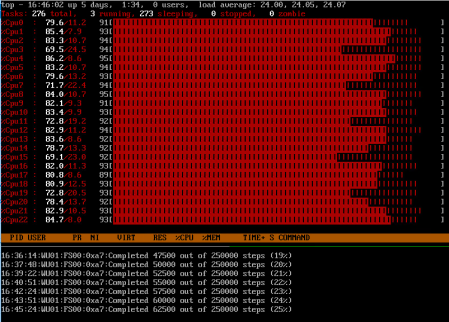
If you’ve deployed 16 CPU’s or more, make sure to add Client-Type bigadv so it requests extra large work units. See their post on this here.
 vEric: